How to Use Synthesia: A Step-by-Step Guide for 2026
Learn how to use Synthesia to create AI avatar videos, from account setup and templates to scripts, voices, visuals, preview, and export.
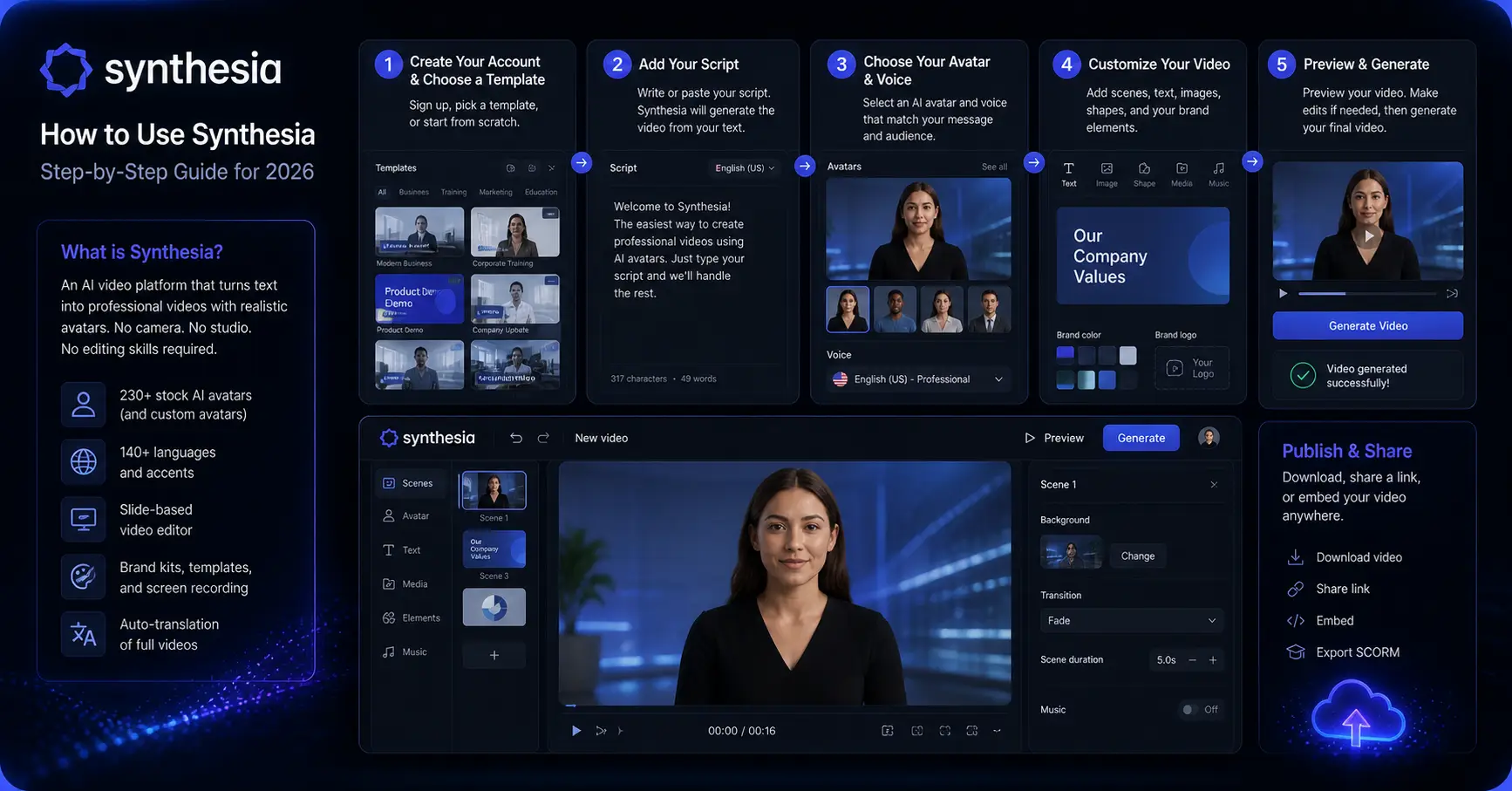
Introduction
Recording a polished video used to mean cameras, lights, scripts, and editing software. In 2026, you can produce one quickly with an AI avatar that talks, gestures, and speaks 140+ languages. This guide walks through how to use Synthesia from blank screen to finished video.
Disclosure: This link may be an affiliate link. We may earn a commission at no extra cost to you.
Compare the tools mentioned in this guide
Tool links may include affiliate placeholders. Always confirm current pricing on the provider site.
What is Synthesia?
Synthesia is an AI video platform that turns text into professional video using realistic avatars. No camera, studio, or editing skills are required. It is used by enterprise teams and smaller companies for training, onboarding, and explainer content.
- 230+ stock AI avatars and custom avatars
- 140+ languages and accents
- Slide-based video editor
- Brand kits, templates, and screen recording
- Auto-translation of full videos
Step 1: Create Your Synthesia Account
Sign up at Synthesia and choose a plan. The Starter plan suits individuals and small teams, while Creator and Enterprise unlock custom avatars and more video minutes. Once inside, the dashboard gives you a New video button where every project starts.
Step 2: Pick a Template or Start From Scratch
Synthesia has templates for common video types such as onboarding videos, product explainers, training modules, sales pitches, and social media clips. Beginners should start with a template because it shows layout, pacing, and avatar placement that already works.
- Onboarding videos
- Product explainers
- Training modules
- Sales pitches
- Social media clips
Step 3: Choose Your AI Avatar
Browse the avatar library and pick one that matches your tone. Avatars vary by gender, age range, style, and background environment. If budget allows, a custom avatar trained on your real face can be the strongest long-term option for branded content.
Step 4: Write or Paste Your Script
Click into the script box and write what you want the avatar to say. Use short, conversational sentences, add commas where you want pauses, and avoid overly technical jargon unless the audience expects it.
- Use short, conversational sentences
- Add commas where you want pauses
- Avoid unnecessary jargon
- Use the built-in AI assistant when you only have a topic or outline
Step 5: Choose Voice and Language
Pick from 140+ languages and a wide voice library. Test a few options because voice tone has a large impact on how professional the video feels. For multilingual teams, generate the same video in multiple languages without re-recording.
Step 6: Add Visuals, Slides, and Media
Synthesia editor works like a slide deck. Add backgrounds, images, screen recordings, text overlays, bullet points, logos, and brand colors. This is where most of the polish comes from, so do not skip it.
- Add backgrounds, images, or screen recordings
- Insert text overlays and bullet points
- Drop in your logo and brand colors
- Sync slides to script timing
Step 7: Preview and Refine
Hit Preview to watch a draft and fix anything that feels awkward. Check pauses, pronunciation, slide timing, and whether visuals compete with the avatar. Refine until the flow feels natural rather than robotic.
- Awkward pauses in the script
- Mispronounced words
- Slide timing that does not match the voiceover
- Visuals that compete with the avatar
Step 8: Generate and Export
Click Generate and Synthesia renders the final video, usually within a few minutes. You can download MP4 or share via direct link, embed code, or LMS integration.
Pro Tips for Better Synthesia Videos
Keep videos under three minutes when possible, cut the script ruthlessly, use one avatar per video unless you need a conversation format, and reuse templates for a consistent brand look.
- Keep videos under 3 minutes when possible
- Cut the script because written sentences sound longer when spoken
- Use one avatar per video unless a conversation format is needed
- Reuse templates to maintain a consistent brand look
Conclusion
Learning how to use Synthesia takes less than an afternoon, and the production time savings start immediately. Pick a template, write a tight script, choose an avatar, refine the slides, and export.